

Creating video content takes time and budget, so understanding how it performs is critical.
YouTube’s native analytics in YouTube Studio are robust, but they’re locked behind account access. That can make reporting difficult — especially when you need to share data or don’t have direct login access.
Moving that data into Google Data Studio (formerly Looker Studio) makes it easier to analyze and distribute.
With Data Studio, you can:
- Pull YouTube data into reports you already use.
- Schedule automated updates for stakeholders.
- Customize dashboards around the metrics that matter.
- Track performance without relying on backend access.
Here’s how to pull your YouTube analytics into a Data Studio report.
Using a template or starting from scratch
You have two options when setting up a YouTube report in Data Studio.
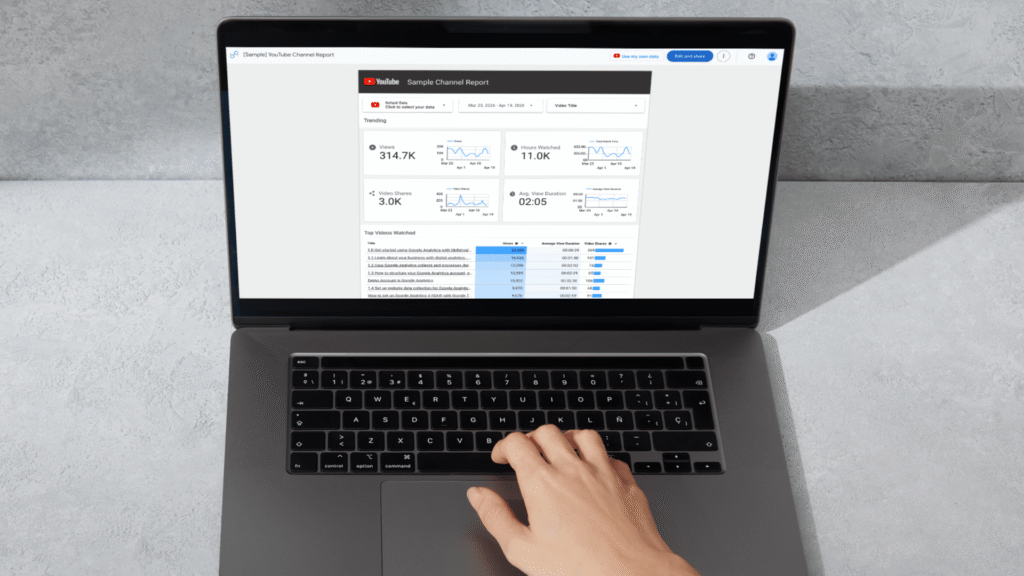
- If you want something quick and easy, you can use Google’s YouTube Analytics template from their template gallery. It’s a great place to start because it provides a clean, well-designed report with foundational metrics and puts you in a good position to understand which metrics are available. But know that this template has problems you’ll need to fix, which I’ll discuss below.
- The other option is to create a report from scratch, which is a great choice if you already have a report you want to add a new YouTube Analytics page to, or if you just want to learn how to use Data Studio.
The information below will help you do both.
Your customers search everywhere. Make sure your brand shows up.
The SEO toolkit you know, plus the AI visibility data you need.
Start Free Trial
Get started with

If you’re not the YouTube account owner
If you’re setting up this report for a client, or if you’re not the owner of the YouTube account, you’re going to run into an issue where the YouTube account doesn’t show up as a usable source in Data Studio. Here’s how to get around it:
- Go to YouTube Studio settings > Permissions, and give Manager permissions to the account email that you’re using in Data Studio.
- Get the Channel ID from the channel’s YouTube URL.
- Add a YouTube connector to Data Studio, go to Advanced, and paste the Channel ID.

You should now have access to that YouTube account.
Using the Data Studio YouTube Analytics template
From the Data Studio home page, click Templates > Template Gallery. Under the category dropdown, click on YouTube Analytics.

Clicking this will create a brand new Data Studio report that’s mostly ready to use. It loads up with sample data from the Google Analytics YouTube channel. Click the button at the top that says “Use my own data.”

The first time you set up a report, you need to authorize access to your data. Click the Authorize button.

Choose the Google Account connected to your YouTube…
Source link
Disclaimer
We strive to uphold the highest ethical standards in all of our reporting and coverage. We blogs.grocliq.com want to be transparent with our readers about any potential conflicts of interest that may arise in our work. It’s possible that some of the investors we feature may have connections to other businesses, including competitors or companies we write about. However, we want to assure our readers that this will not have any impact on the integrity or impartiality of our reporting. We are committed to delivering accurate, unbiased news and information to our audience, and we will continue to uphold our ethics and principles in all of our work. Thank you for your trust and support.
Website Upgradation is going on for any glitch kindly connect at [email protected]