



One of the strengths of WordPress is its extensibility. You can run everything from e-shops and booking systems to massive WordPress multisites from one instance of WordPress.
Another is that it’s a database and robust PHP-based programming language, which means that running a bunch of updates on a site is remarkably straightforward.
In this post, I’m going to present three different ways to bulk update WordPress.
A quick word of caution before starting to look at this: Things like misaligned fields or plugin conflicts could result in unintended results, so if you’re doing any large-scale updates, be sure to back up beforehand.
Also, for the content updates, it’s worth running a small test. Ten or so posts as a tester is a good way to start, before running it through the entire site.
1. How To Bulk Update Content On A WordPress Website
Simple Changes To Existing Content
If you want to make simple changes to existing content, such as bulk change the author, status, or taxonomies on a number of pieces of content, one thing you can do is use WordPress’ pre-existing bulk editing component.
From the edit posts/pages page, you can tick individual posts and pages and select “Edit.”
From there, you can set all posts’ categories, tags, statuses, and other information quickly and easily. Once done, click the “Update” button.
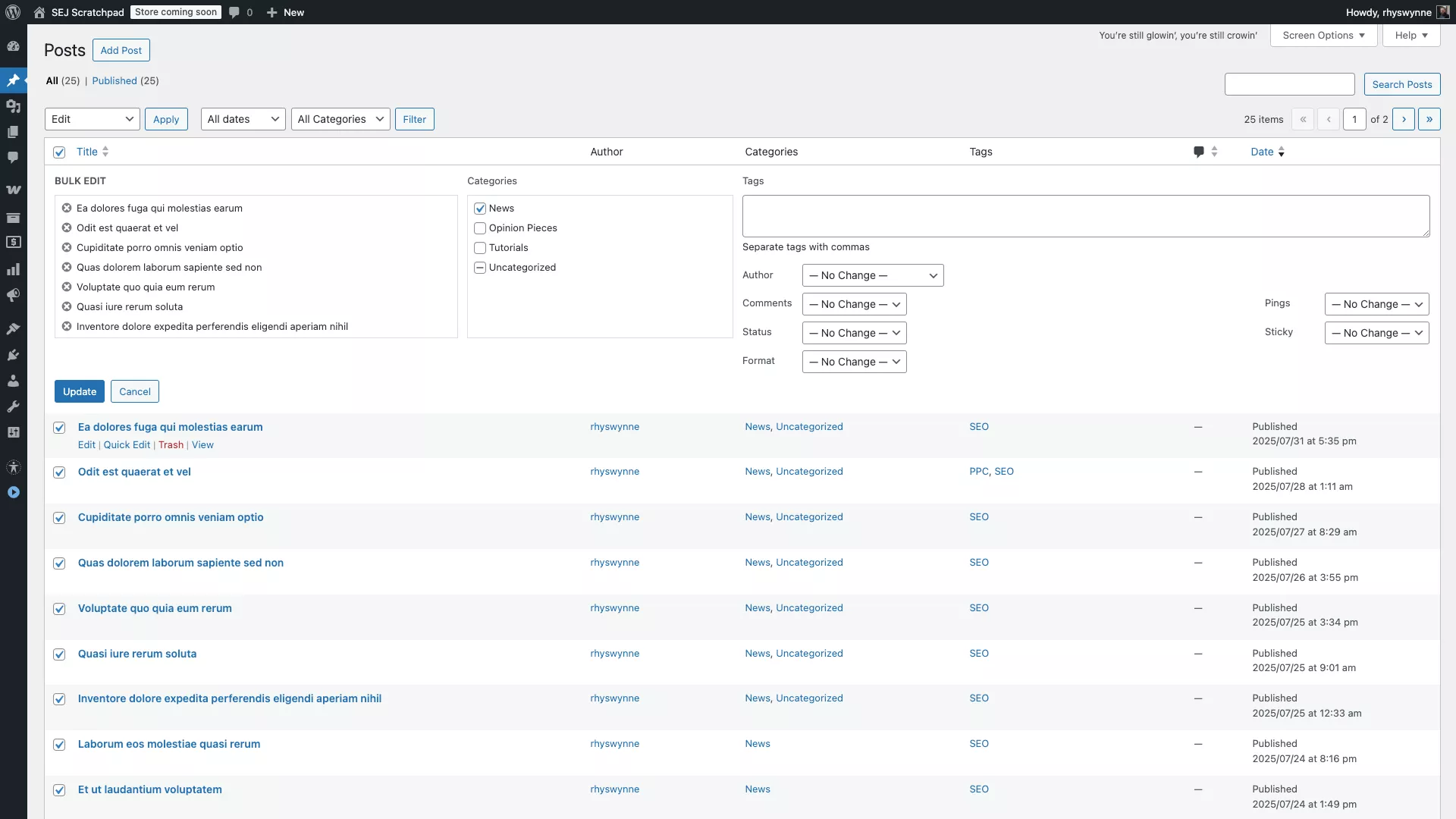 Screenshot from WordPress, August 2025
Please note: This will replace all categories, but tags will be added. This is probably the most common way of editing content, which you probably already know about!
Importing And Exporting Content
Let’s say you want to bulk add WordPress content on a WordPress website.
The most common version is that you want to import a set of blog posts, or indeed, you have a list of products within a spreadsheet that you want to import into a system like WooCommerce; it depends on where you’re importing from.
If you’re combining a WordPress export and importing it into another blog, the best way is to use the default WordPress Importer plugin.
If you’re moving content between WordPress sites, use the default WordPress Importer. It reads WXR (.xml) export files and can optionally download and import file attachments.
If you are using WooCommerce, then the best course of action would be to use the default WooCommerce product importer.
It’s pretty robust and can take a standard CSV, XML file, or spreadsheet and import it. You can map these fields to WooCommerce fields, which is a bit more work.
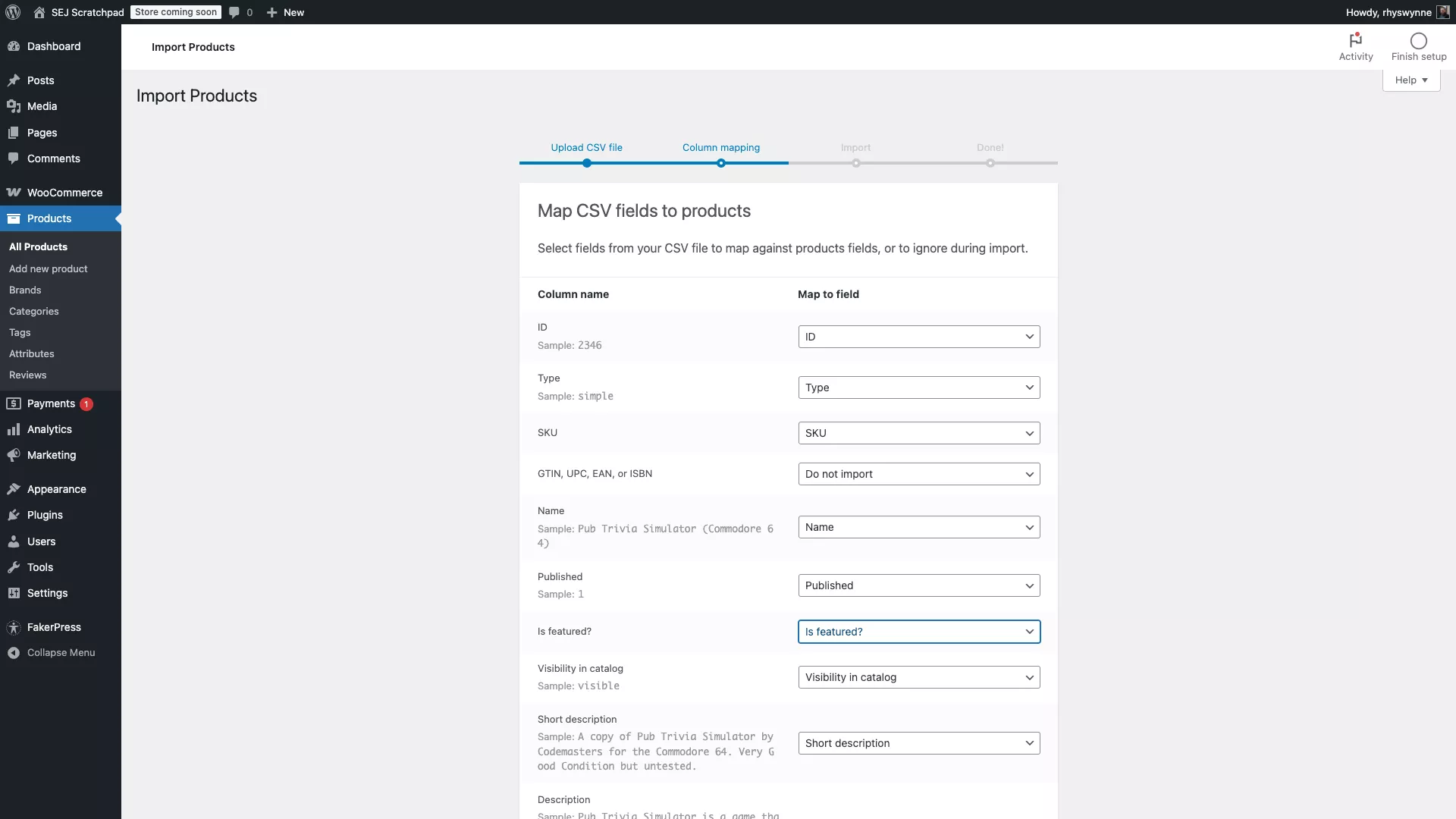 Screenshot from WordPress, August 2025
For WooCommerce products, use the built-in Product CSV Importer/Exporter and map your columns to product fields.
Should you be importing content from a non-standard source (like a CSV or a feed), a great plugin to use is WP All Import.
For non-standard sources (CSV, XML, Excel, Google Sheets), WP All Import can map fields to any post type and even run custom PHP during import. Add-ons cover ACF, Yoast, and WooCommerce.
It’s a freemium plugin, with…
Source link
Disclaimer
We strive to uphold the highest ethical standards in all of our reporting and coverage. We blogs.grocliq.com want to be transparent with our readers about any potential conflicts of interest that may arise in our work. It’s possible that some of the investors we feature may have connections to other businesses, including competitors or companies we write about. However, we want to assure our readers that this will not have any impact on the integrity or impartiality of our reporting. We are committed to delivering accurate, unbiased news and information to our audience, and we will continue to uphold our ethics and principles in all of our work. Thank you for your trust and support.
Website Upgradation is going on for any glitch kindly connect at [email protected]